
What is character swap AI video technology?
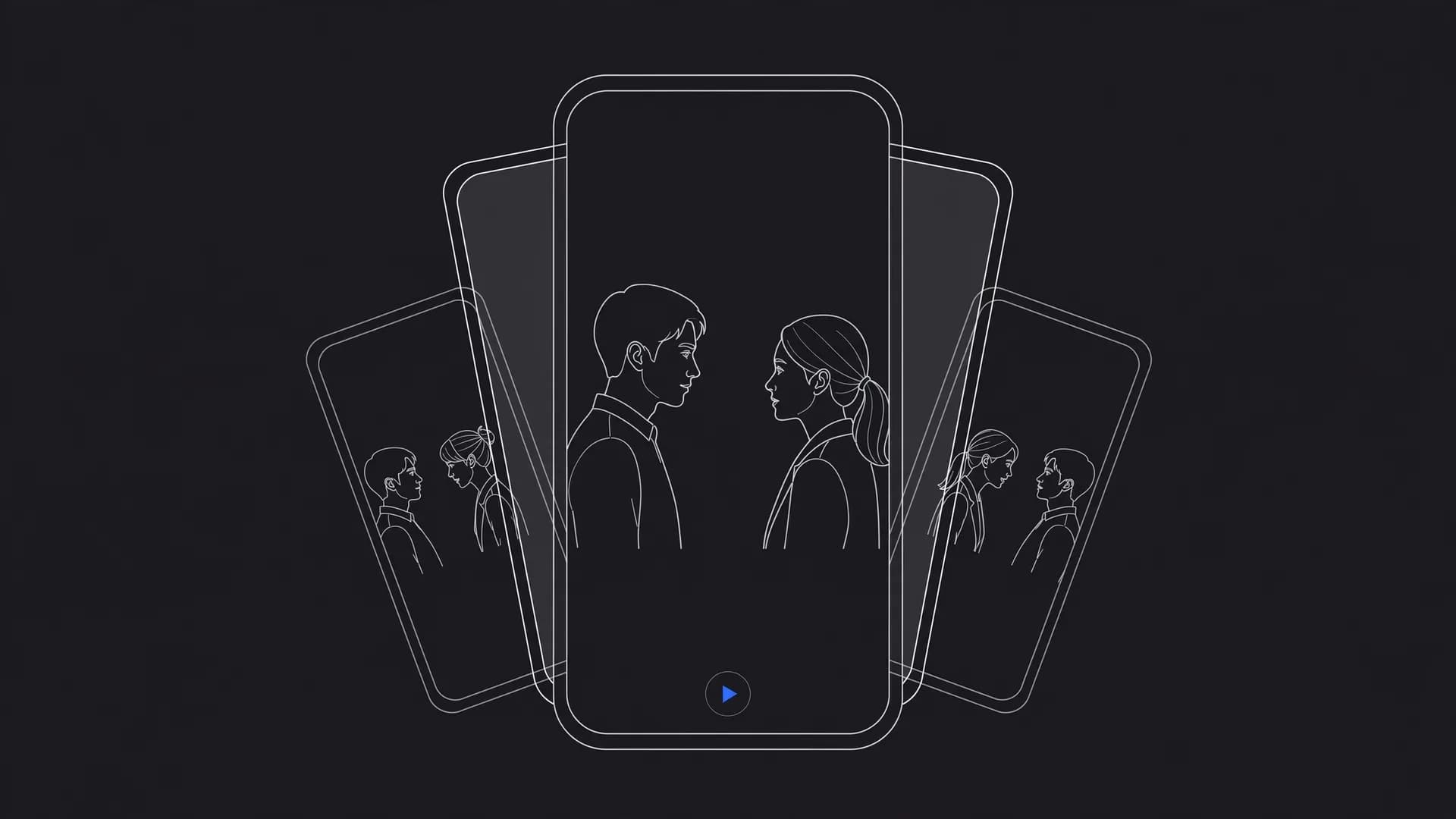
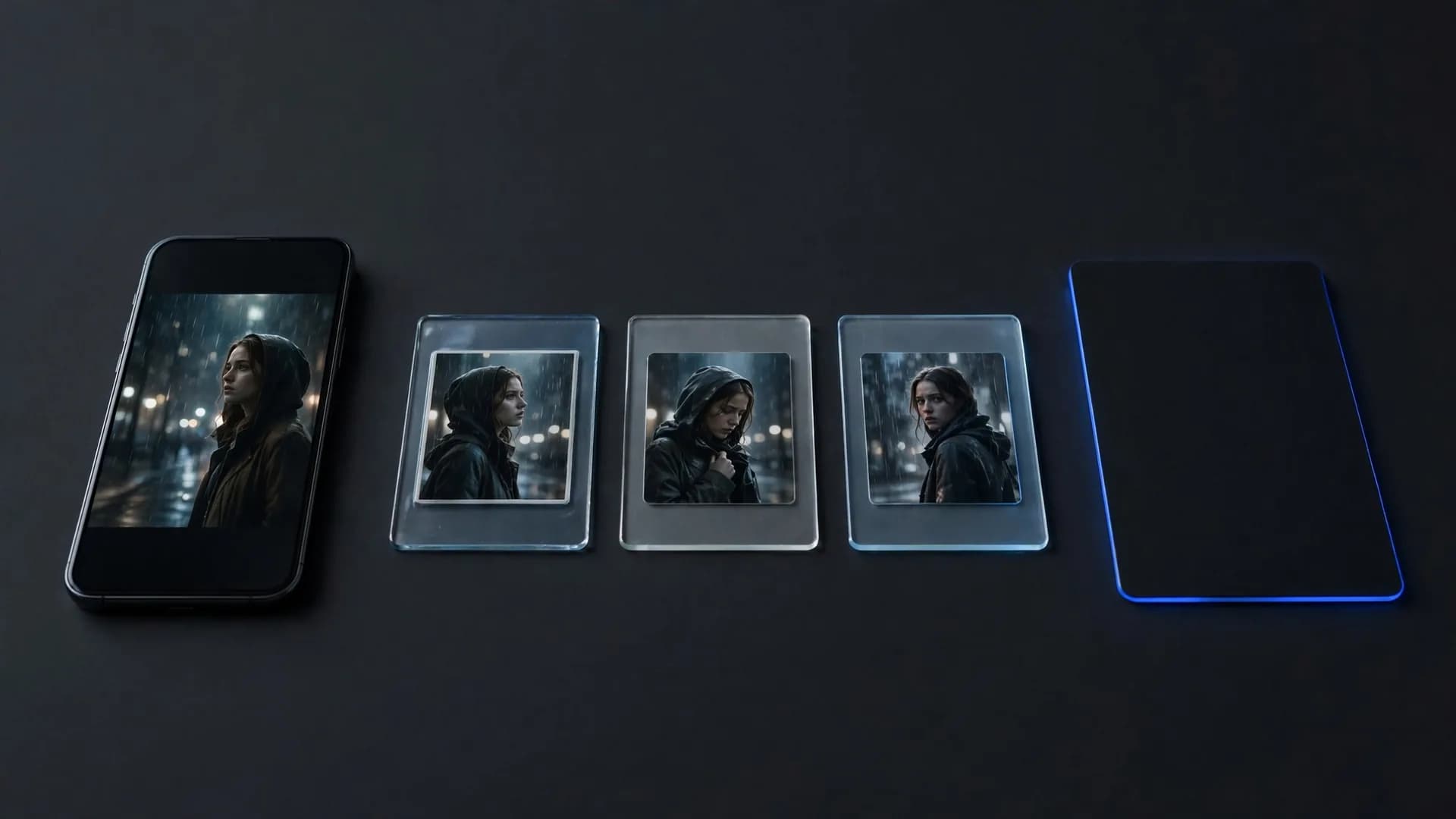
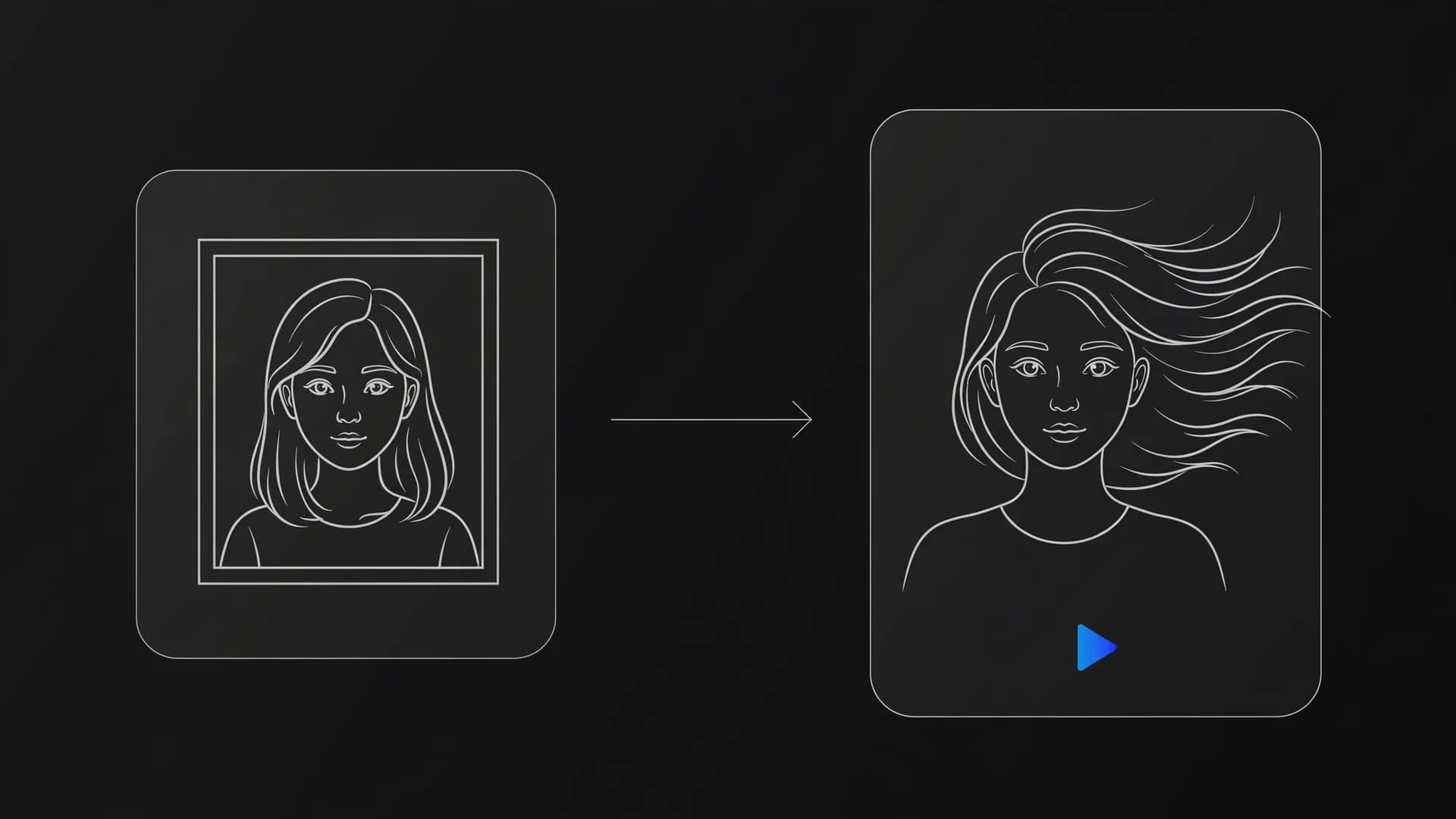
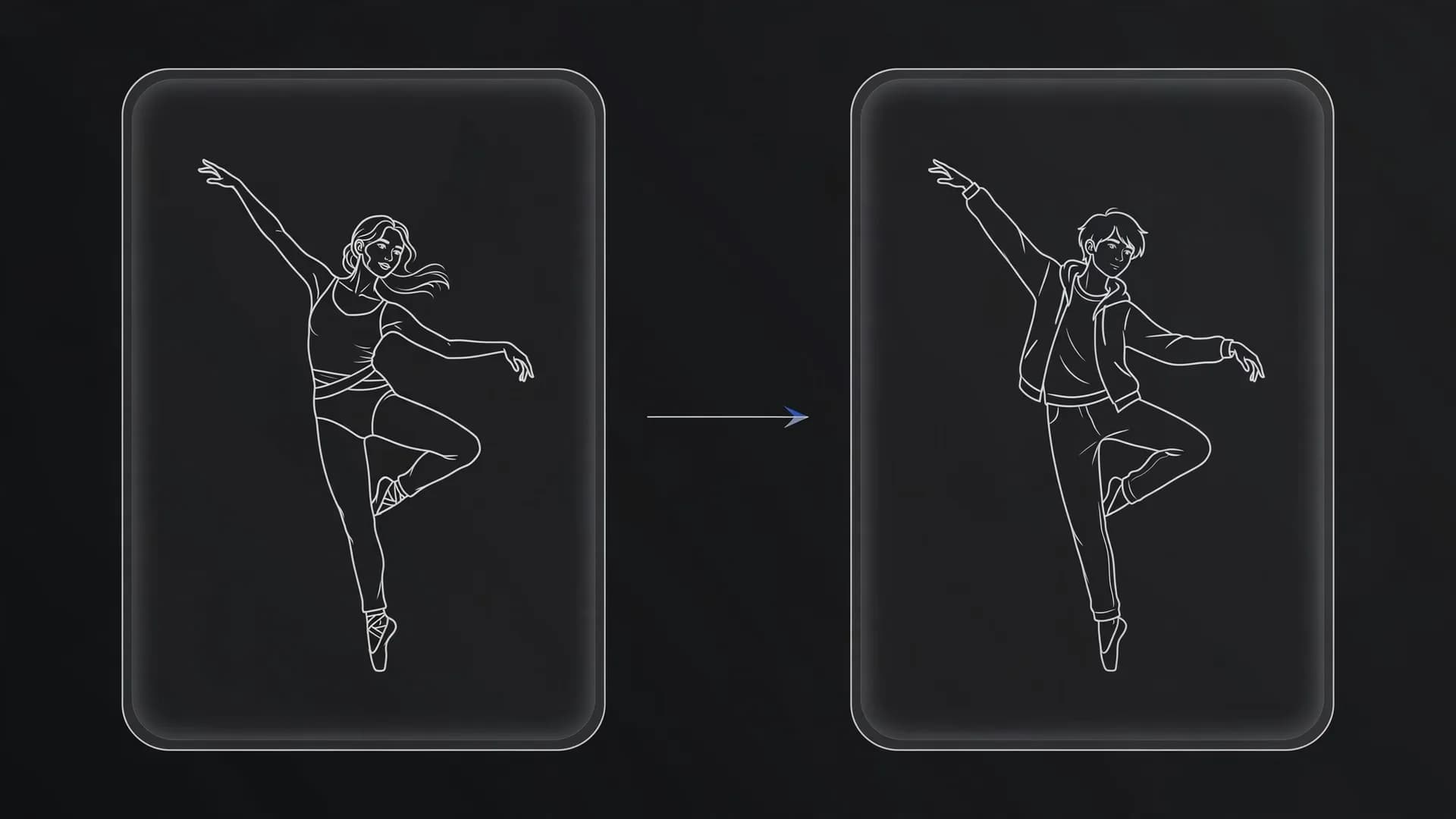
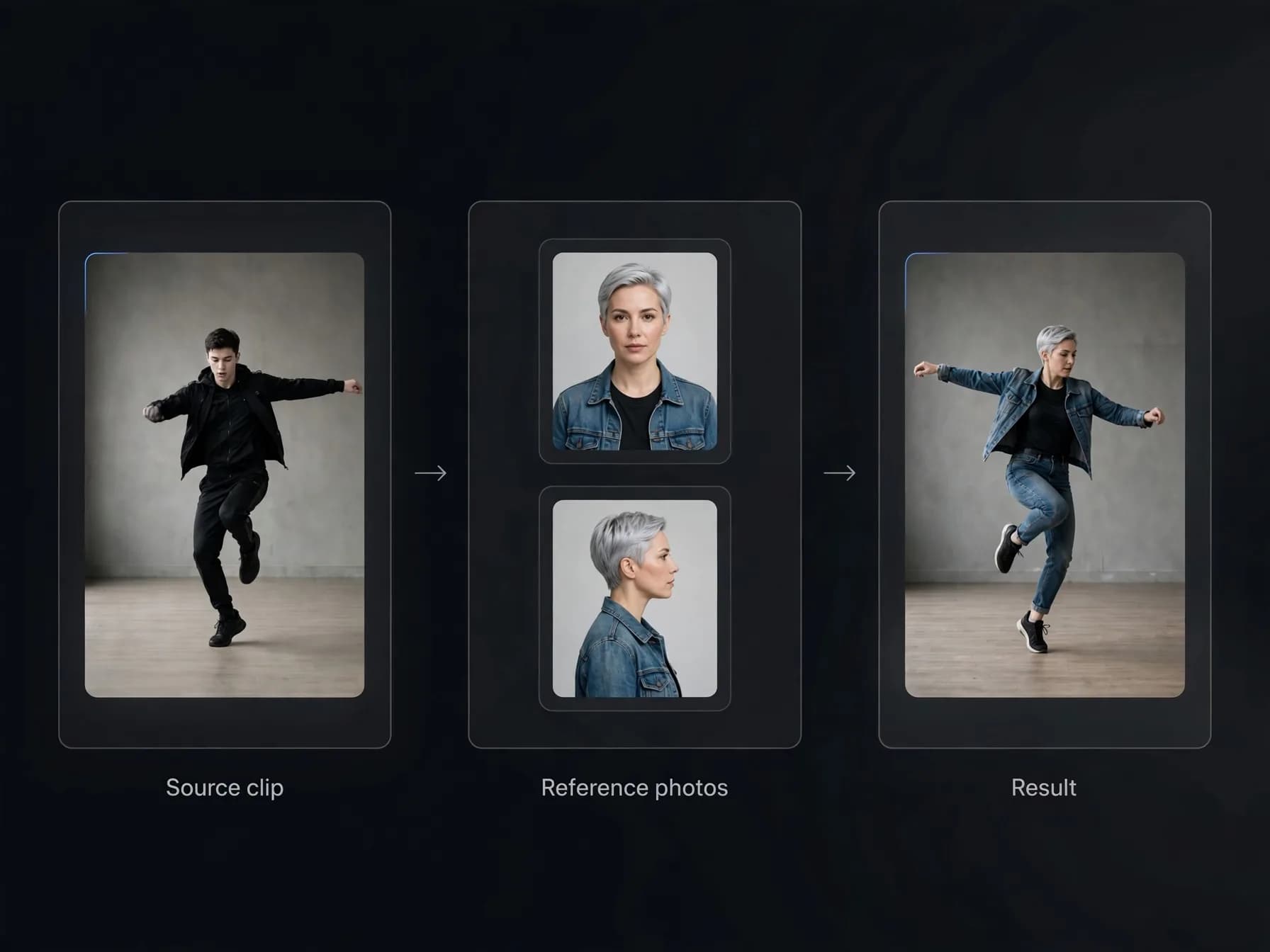
An AI video character swap replaces an actor or animated figure in an existing clip with an entirely new subject while preserving background motion, camera angles, and scene lighting. Modern generative pipelines interpret the source performance and reconstruct each frame around your new character. This allows creators to insert original digital personas into pre-recorded sequences without filming on set.
The technology relies on advanced neural models trained on motion dynamics and spatial cues. Instead of manually rotoscoping each frame or tracking complex 3D meshes, the system tracks keypoints across temporal dimensions. The resulting AI video retains natural physical movement, cloth physics, and believable interaction with the original environment.
Traditional video production required motion capture suits and extensive post-production teams to achieve comparable results. Today, creators exploring an AI UGC generator can test ideas rapidly. If you are learning how to make AI videos, you can turn a simple phone clip into an imaginative narrative featuring custom digital figures in minutes.
Which AI models can swap a character in a video?
Several models now specialise in AI character replacement. They all take a source video plus one or more photos, but they differ in what they keep, how long a clip they accept and what they cost. The prices below are the published list prices on 28 October 2026, per second of finished video.
1. Lockstep by eachlabs
eachlabs launched Lockstep on 28 October 2026 and calls it the best recast model on the market at the lowest price, a claim that has no public benchmark yet. You upload a video and 1 to 8 character photos, add an optional prompt and pick 480p ($0.0475 per second), 720p ($0.09) or 1080p ($0.18). It runs only on the eachlabs platform and API, and no maximum clip length is published.
2. MiniMax H3 Max Recast
Recast replaces the people in a clip with 1 to 4 reference photos and keeps the source motion, camera, cuts and audio. The source must be 5 to 30 seconds with no single shot over 15 seconds. It is the premium option at about $0.30 per second at 768p and $0.45 at 1080p on eachlabs.
3. Wan 2.2 Animate Replace
the open Wan model swaps the character in a reference video and matches the scene's lighting and colour tone, for about $0.08 per second on fal. It is a popular choice for stylised and anime characters.
4. Kling 3.0 Motion Control
Kling works the other way around. It animates your character photo with the movement from a reference clip, so the background comes from your photo, not the video. It costs about $0.126 per second (Standard) or $0.168 (Pro) through the API. Our Kling motion control guide covers it step by step.
5. Runway Act-Two
Act-Two transfers a performer's body, face and hand movement onto a character image or video. It works best with one performer in frame and costs about $0.05 per second on eachlabs.
6. Viggle
Viggle's Mix mode puts a character photo into a motion clip inside its own app. It is aimed at quick memes and dance clips, and it is sold as a subscription rather than per second.
None of these models runs on OnVid. To put your own character into an existing clip on OnVid, use video-to-video, which the next sections walk through.
Full-body replacement versus face swapping in AI videos
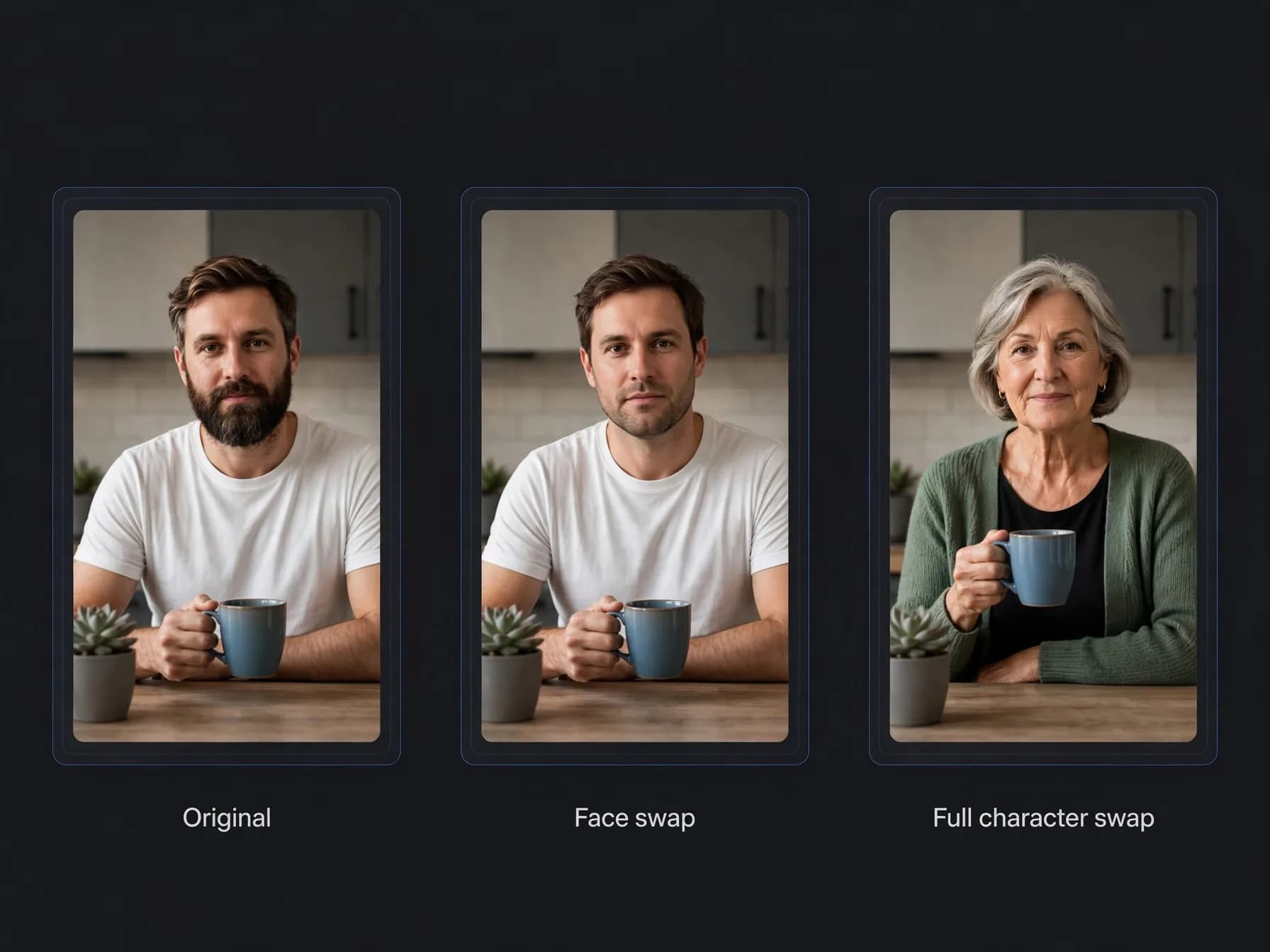
Creating an AI character swap video involves choosing between quick facial editing and complete body re-rendering. If your clip already features ideal wardrobe, body proportions, and fluid acting, targeting only the facial region is faster and uses fewer compute resources. When you need a different costume, stylized anatomy, or fantasy proportions, full figure replacement becomes necessary.
For simple identity updates, an AI video face swap tool maps facial contours and expressions while keeping the rest of the footage untouched. This method preserves original clothing textures, hair interactions, and complex hand gestures without introducing full-body distortion. It works exceptionally well for localization, parody clips, and quick social edits.
Full figure replacement requires deeper generative synthesis using multi-image reference models. Similar to learning how to animate a photo from a still portrait, you upload a reference video alongside character portraits so the system can replace character in video frames entirely. This path gives you complete creative freedom over clothing, species, and visual aesthetics while maintaining the original camera movements.
Step-by-step character swap AI video workflow
Step 1: Upload a clean source clip under thirty seconds into the video-to-video workspac
Step 2: Select a model such as Seedance 2.5 or Wan 3.0 and write a short prompt that say
Step 3: Review your rendered five or ten second AI video clip and download your file in
Recast one AI UGC ad for every market
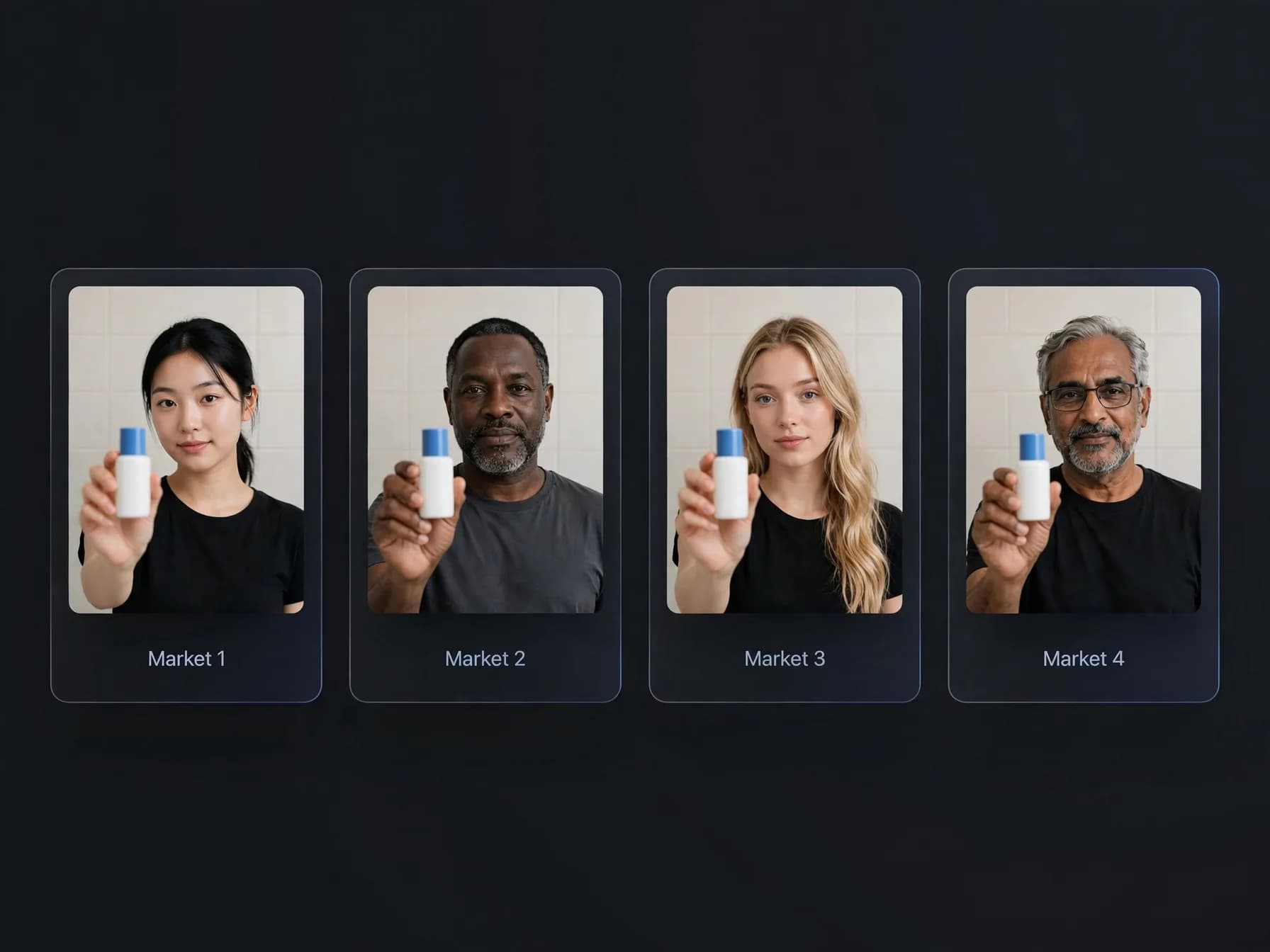
The use case eachlabs pushed hardest at launch is advertising: film one ad, then swap the presenter to make a version for each audience. In its launch posts, eachlabs showed one shoot turned into four ads with four different characters, with the product, the light and every move kept the same.
This works because an ad's hook, timing and product shots are what you tested, and only the face of the ad needs to change between markets. Keep the source take clean: one presenter, the product in clear view and steady framing. Then recast it with a different character photo per market and add localised captions or a dubbed voice.
Disclose AI-generated presenters where the ad platform requires it, and never recast a real person without their permission. For building the original ad from scratch, OnVid's AI UGC video generator and our list of the best AI UGC generators are good next steps.
What a character swap AI video costs on OnVid
OnVid is free to start after you sign up, and video generation runs on credits from the Pro and Max plans. Credits are charged per second of video and vary by model, because video generation needs a lot of GPU time.
Pro costs $7.99 a week or $14.99 a month, and Max costs $14.99 a week or $28.99 a month. Pro supports videos up to 30 seconds, while Max unlocks long videos up to 60 seconds and Max-only models like Kling v3 and Sora 2 Pro. Failed generations refund their credits to your balance.
Commercial use depends on the model that made the video; check the OnVid Terms of Service and the model's terms before commercial use. Clean source clips and sharp reference photos waste fewer credits on retries.
Tips to preserve lighting and motion across AI video frames
1. Lighting alignment
Matching the lighting in your character reference images to the source clip is essential for a convincing video character swap. If your original clip is filmed under warm golden hour sunlight, feeding the model a reference photo taken in cool fluorescent office lighting causes edge fringing. Choose or generate reference images that mirror the color temperature and key light angles of your background scene.
2. Motion pacing
Avoid source videos with extreme motion blur, rapid camera pans, or heavy foreground occlusions. Generative video diffusion models perform best when limbs remain distinct and the primary actor stays in frame without passing behind thick pillars or tree branches. Steady gimbal shots or locked-off camera movements yield the cleanest silhouette tracking.
3. Resolution and framing
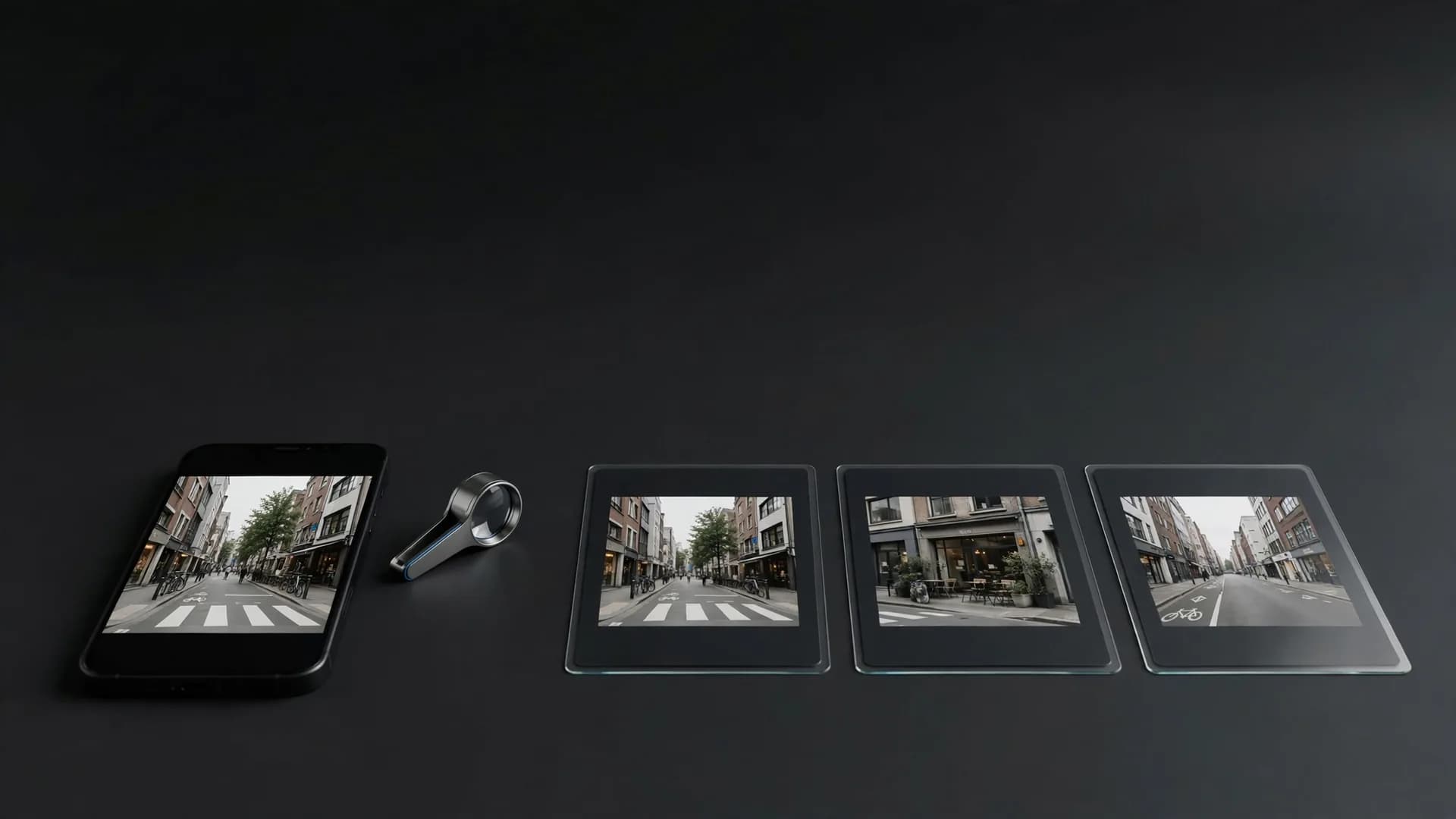
Source footage filmed at 1080p with moderate depth of field delivers the clearest guidance for character boundaries. Blurry mobile footage shot in near darkness forces the neural network to guess missing contours, leading to morphing artifacts. Crisp silhouettes allow the model to replace the actor cleanly while locking background elements firmly in place.
Common pitfalls when altering footage for AI videos
One frequent mistake is overloading the text prompt with conflicting descriptive adjectives that clash with source video actions. If your reference clip shows an actor walking slowly, prompting dynamic martial arts kicks confuses the motion interpolation engine. Guide the AI toward styling and identity changes rather than forcing contradictory physical actions.
Another common error involves uploading multi-person footage without designating which figure should undergo replacement. When multiple subjects enter the frame simultaneously, diffusion algorithms may blend visual attributes across both bodies. Crop your source footage closely around your primary character before initiating your AI video generation.
Finally, avoid neglecting audio continuity when replacing actors in dialogue-heavy sequences. If you swap an actor in a clip containing speech, consider whether you need realistic lip sync or ambient audio matching. Recast models such as MiniMax H3 Max Recast keep the source audio; with others, add a dubbed voice and lip sync afterwards so the mouth matches the words.